Game Boy and Game Boy Color for MEGA65
Play Game Boy and Game Boy Color games on your MEGA65! The core is super stable and plays 99% (or more) of all Game Boy and Game Boy Color games, given that the cartridge ROM size of the game is up to 1 MB.
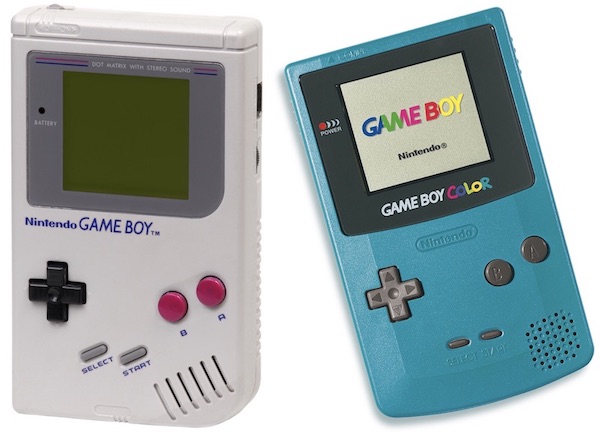
Version 1.0 supports all current MEGA65 models (R3/R3A, R4, R5 and R6) and is built on the MiSTer2MEGA65 framework - the framework whose creation was originally inspired by this very core, back in 2021.
Credits
- This core is based on the MiSTer Game Boy core which itself is based on the MiST Game Boy core by Till Harbaum.
- sy2002 and MJoergen ported the core to the MEGA65 in 2021 - 2026. Special thanks to Robert Peip for his invaluable support.
- The included Open Source Game Boy Color BIOS is from the SameBoy project.
- Powered by MiSTer2MEGA65 and QNICE-FPGA.
See AUTHORS for the complete list of credits.
Features
- Game Boy and Game Boy Color support (the core starts in Game Boy Color mode)
- Convenient on-screen-menu and cartridge file browser which supports long filenames; all settings are saved to the SD card (via the settings file that is included in the release ZIP, see Installation)
- Joystick support in both ports including special mappings so that you can for example play Super Mario Land via joystick
- Color grading that reproduces how the colors looked on the LCD display of the original Game Boy Color hardware - switchable to fully saturated raw RGB colors
- HDMI: four 60 Hz display modes, eight image filters from razor sharp to CRT simulation, flicker-free HDMI and selectable Small, Medium and Full Handheld LCD (10:9) sizes or TV-style (4:3) geometry
- VGA: standard 31 kHz output plus two retro 15 kHz modes for CRT monitors and RGB/SCART setups
- Audio on HDMI and on the 3.5 mm analog jack, with an optional filter stage ("Audio Improvements")
- Support for both MEGA65 SD card slots
- Works out of the box: an Open Source Game Boy Color BIOS (boot ROM) is included
Installation
- Download the ZIP file that contains the core from the MEGA65 FileHost
- Install the core
- The core needs a FAT32 formatted SD card to load game cartridges (ROMs).
- If you put your ROMs into a folder called
/gbc, then the file browser will display this folder on startup. The core supports.gb(Game Boy) and.gbc(Game Boy Color) files up to 1 MB. In Game Boy Classic mode, the browser deliberately shows only.gbfiles. - Copy the settings file from the ZIP (for example
gbc4mega65-V1.0.cfg) into the/gbcfolder of your SD card: it enables the core to remember all your on-screen-menu settings. - The core includes an Open Source Game Boy Color BIOS. For more authenticity, learn here how to use an original BIOS.
Getting started
After you start the core, a welcome screen explains the keyboard mapping; the picture stays dark until you load the first game cartridge. Here are the most important hints:
-
Press Help to open and to close the on-screen-menu. Load a cartridge via the menu item
Cartridge: Choose a Game Boy ROM (normally having the file extension.gb) or a Game Boy Color ROM (.gbc) from any folder of your SD card using the cursor keys and Return to navigate. The game starts as soon as it is loaded. -
Use Space as the Game Boy's "Start" key and Return as the Game Boy's "Select" key. Left Shift is Game Boy's "A" and Mega 65 is Game Boy's "B". The cursor keys of the MEGA65 are the Game Boy's joypad. The menu item
About & Helpshows this keyboard mapping at any time. -
In the on-screen-menu you can switch between Game Boy Color and Game Boy Classic, configure the joystick mapping, choose between two color modes and configure the video output. The core remembers all your settings as soon as the settings file from the release ZIP is in the
/gbcfolder (Installation, step 5).
Some demo pictures
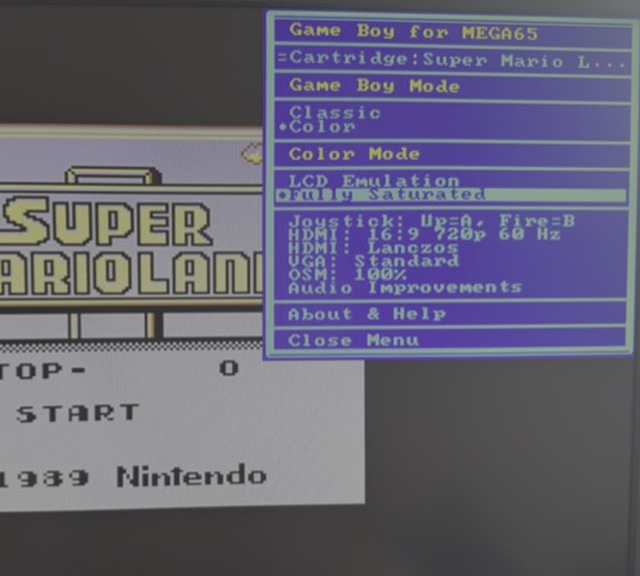 |
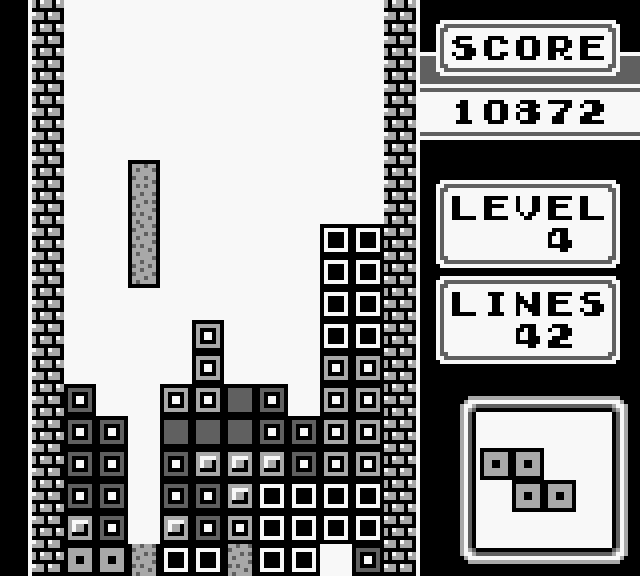 |
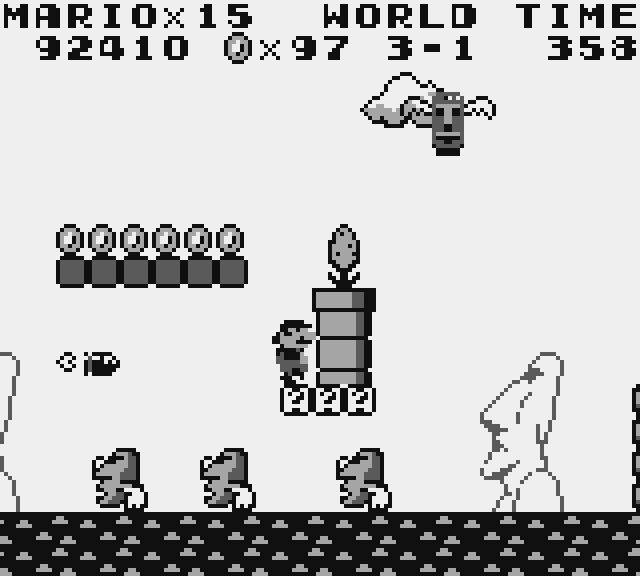 |
|---|---|---|
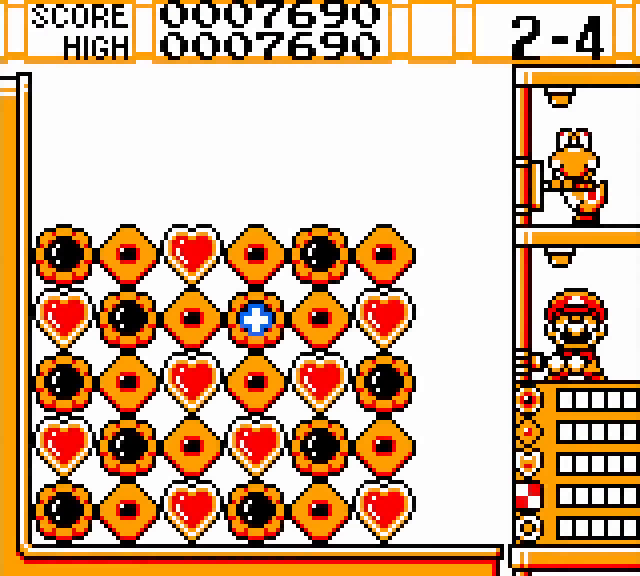
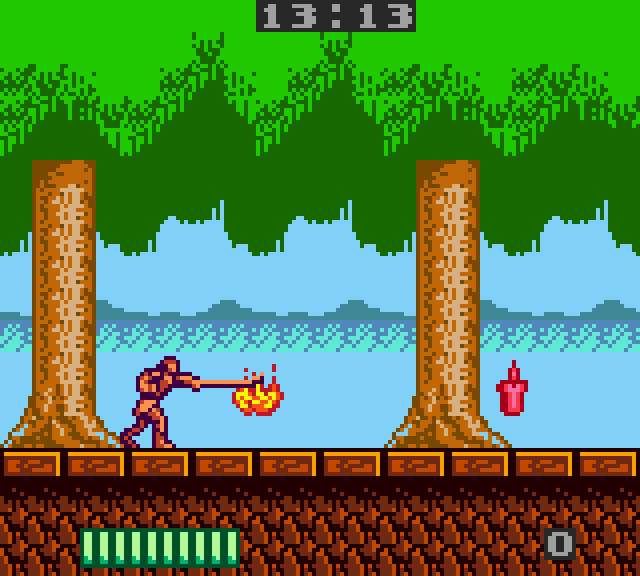
| Game Boy for MEGA65 menu | Tetris | Super Mario Land |
 |
 |
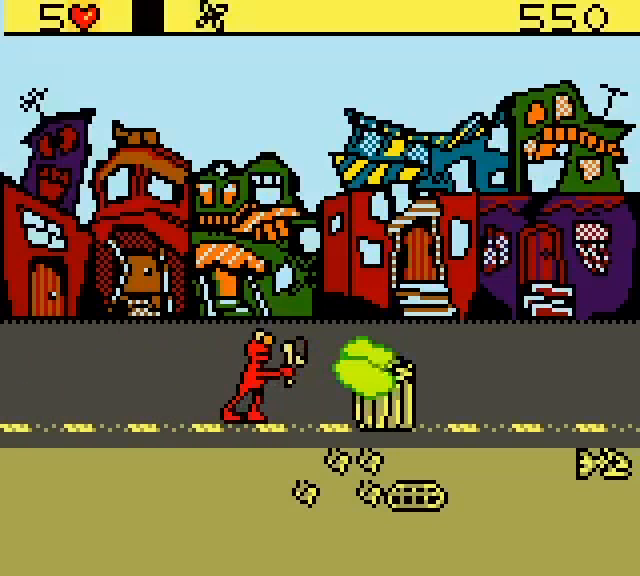 |
| Yoshi's Cookie in Color mode | Castlevania: The Adventure | Elmo in Grouchland |
Clarification: These screenshots are just for illustration purposes. This repository does not contain any copyrighted ROMs such as BIOS ROMs or game ROMs.
Game Boy Mode and cartridges
The core starts in Game Boy Color mode: Game Boy Color games and Color enhanced Game Boy games are rendered in color, and even pure Game Boy Classic games are colorized by the Game Boy Color BIOS - exactly as on the real hardware. Switch to Game Boy Classic in the on-screen-menu to play games in the authentic grayscale look. Changing this mode automatically resets the Game Boy machine so the selected boot ROM and mode take effect immediately; the loaded cartridge remains available and starts again. A Color-only cartridge cannot be loaded in Classic mode, and while one is running the menu prevents switching from Color to Classic. Ordinary Game Boy and dual-compatible Color-enhanced cartridges may switch either way.
The core checks each cartridge before loading it: the maximum supported
cartridge (ROM) size is 1 MB and the cartridge needs to use one of the
supported Memory Bank Controllers (ROM only, MBC1, MBC2, MBC3 and MBC5,
which covers the vast majority of all games ever released). Compatibility
is taken from the cartridge header, so merely renaming a Color-only ROM to
.gb cannot bypass the Classic-mode safeguard.
There are no savegames yet: highscores and game states are lost when the core is switched off (exactly as in V0.8).
Boot ROMs (BIOS)
The core works out of the box: Game Boy Color mode uses the included Open
Source boot ROM (BIOS) from the
SameBoy project and Game Boy Classic
mode uses the boot ROM that is built into the MiSTer Game Boy core. For
more authenticity you can put the original Game Boy Color BIOS into the
/gbc folder of your SD card; the core loads it automatically at startup.
The Classic boot ROM is part of the core itself and cannot be replaced.
Learn more in the boot ROM documentation.
Joystick usage and mapping
Basic usage: Just plug your joystick into port #1 or #2 of the MEGA65. Both ports work in parallel - even while the on-screen-menu is open, so the game stays playable while you adjust settings. By default the fire button of the joystick is mapped to the Game Boy's A button, which is fine for many games - and for games that jump with A or B (such as Super Mario Land or Castlevania) the on-screen-menu offers three more mapping modes.
Color Modes
For Game Boy Color games you can choose between two color modes in the on-screen-menu: "LCD Emulation" (the default) performs a color grading that approximates the historical color LCD screen and "Fully Saturated" shows the raw, unprocessed colors.
Video output
HDMI and VGA are active simultaneously. The HDMI output offers four 60 Hz display modes, eight image filters, a flicker-free mode, three Handheld LCD (10:9) picture sizes and a TV-style (4:3) choice; the VGA output offers a standard 31 kHz mode and two retro 15 kHz modes for CRT monitors, including composite sync (CSYNC) for RGB/SCART setups. Learn more in the display documentation.
Important: If you use a VGA display or an analog retro monitor, switch off "HDMI: Flicker-free" in the on-screen-menu. Flicker-free makes the sync frequency of the analog output step slightly, which analog displays dislike.
Audio
Audio is available on HDMI and on the 3.5 mm analog jack simultaneously. By default you hear the raw output of the Game Boy's sound unit. Switch on "Audio Improvements" in the on-screen-menu to route the sound through a gentle low-pass filter chain (the MiSTer standard audio filter) that softens the raw square waves, comparable to the analog output stage of the original hardware.
SD cards
SD cards need to be formatted with FAT32. If you have a folder called
/gbc, then the file browser will start in this folder, and the core will
also look for boot ROMs and store its settings file
there.
Both SD card slots of the MEGA65 are supported. The back slot ("external") has precedence over the bottom tray slot ("internal"): If you insert a card into the back slot, then it is used, otherwise the card in the bottom tray slot. While the file browser is open, you can use F1 to manually switch to the internal card and F3 to switch to the external card.
For developers
gbc4mega65 is Open Source (GPL v3). Learn how to build the core from source or read how the documentation website is generated.